
Checkbox
Build interactive forms with a checkbox component for React & React Native. Features include hover, focus, disabled states, and multiple checkbox selection. This is an illustration of Checkbox component.isDisabled
isInvalid
Installation
Run the following command:
npx gluestack-ui@latest add checkboxAPI Reference
To use this component in your project, include the following import statement in your file.import { Checkbox } from '@/components/ui/checkbox';
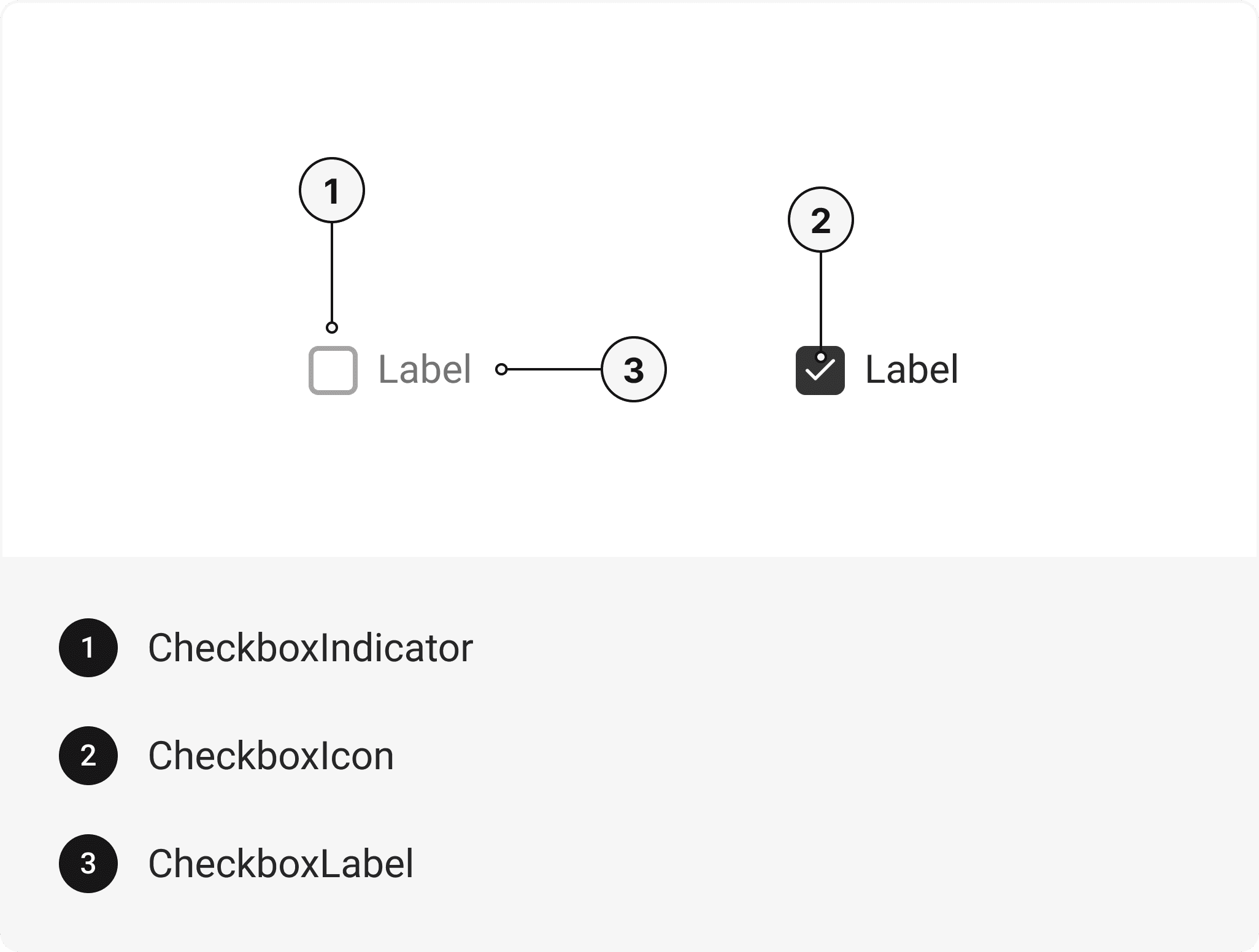
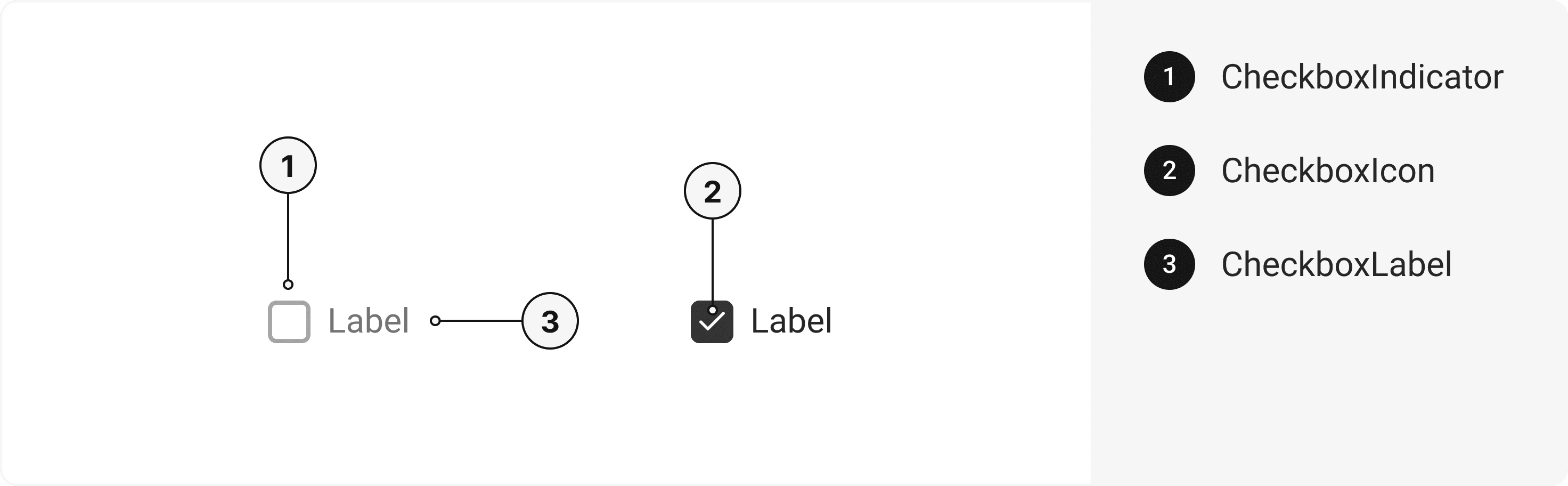
export default () => (
  <CheckboxGroup>
    <Checkbox>
      <CheckboxIndicator>
        <CheckboxIcon />
      </CheckboxIndicator>
      <CheckboxLabel />
    </Checkbox>
  </CheckboxGroup>
);
Component Props
This section provides a comprehensive reference list for the component props, detailing descriptions, properties, types, and default behavior for easy project integration.Checkbox
Contains all Checkbox related layout style props and actions. It inherits all the properties of React Native'sView
component.
| Prop | Type | Default | Description |
|---|---|---|---|
value | string | - | The value to be used in the checkbox input. This is the value that will be returned on form submission. |
onChange | (value: boolean) => void | - | Function called when the state of the checkbox changes. |
defaultIsChecked | bool | false | If true, the checkbox will be initially checked. |
isChecked | bool | false | When true, the checkbox will be checked. You'll need to pass onChange to update it's value (since it's now controlled). |
isDisabled | bool | false | To manually set disable to the checkbox. |
isInvalid | bool | false | To manually set invalid to the checkbox. |
isReadOnly | bool | false | To manually set read-only to the checkbox. |
isHovered | bool | false | To manually set hover to the checkbox. |
isFocusVisible | bool | false | To manually set focus visible state to the checkbox. |
isIndeterminate | bool | false | To manually set indeterminate to the checkbox. |
CheckboxIndicator
Contains all indicators related layout style props and actions. It inherits all the properties of React Native'sView
component.
CheckboxIcon
Contains all Icon related layout style props and actions. It inherits all the properties of gluestack Style'sAsForwarder
component.
| Prop | Type | Default | Description |
|---|---|---|---|
forceMount | boolean | false | Forces mounting when more control is needed, useful for animations with React libraries. |
CheckboxLabel
Contains all Label related layout style props and actions. It inherits all the properties of React Native'sText
component.
CheckboxGroup
Contains all Group related layout style props and actions. It inherits all the properties of React Native'sView
component.
| Prop | Type | Default | Description |
|---|---|---|---|
value | string[] | - | The value of the checkbox group. |
onChange | (values: Array<string>) => void | - | The callback fired when any children Checkbox is checked or unchecked. |
isDisabled | bool | false | To manually set disable to the checkbox. |
isInvalid | bool | false | To manually set invalid to the checkbox. |
isReadOnly | bool | false | To manually set read-only to the checkbox. |
Features
- Keyboard support for actions.
- Support for hover, focus and active states.
Accessibility
We have outlined the various features that ensure the Checkbox component is accessible to all users, including those with disabilities. These features help ensure that your application is inclusive and meets accessibility standards.Adheres to theWAI-ARIA design pattern
.
Keyboard
- Tab: Moves focus to the next focusable element.
- Shift + Tab: Moves focus to the previous focusable element.
- Space: To check or uncheck focused checkbox.
Screen Reader
- VoiceOver: When the checkbox is focused, the screen reader will announce it's a checkbox and it's current state (check or uncheck) and it's label.
Focus Management
- TheonFocusandonBlurprops to manage focus states and provide visual cues to users. This is especially important for users who rely on keyboard navigation.
States
- In error state,aria-invalidwill be passed to indicate that the radio input has an error, and providing support for anaria-errormessageto describe the error in more detail.
- In disabled state,aria-hiddenwill be passed to make radio input not focusable.
- In required state,aria-requiredwill be passed to indicate that the radio input is required.
Props
Checkbox component is created using Pressable component from react-native. It extends all the props supported byReact Native Pressable
.
Checkbox
| Name | Value | Default |
|---|---|---|
size | lg | md | sm | md |
Important Note
Note: These props are exclusively applicable when utilizing the default configuration of gluestack-ui/config. If you are using a custom theme, these props may not be available.
Data Attributes Table
Component receives states as props as boolean values, which are applied asdata-*
attributes. These attributes are then used to style the component via classNames, enabling state-based styling.
| State | Data Attribute | Values |
|---|---|---|
hover | data-hover | true | false |
active | data-active | true | false |
disabled | data-disabled | true | false |
focusVisible | data-focus-visible | true | false |
invalid | data-invalid | true | false |
checked | data-checked | true | false |
Examples
The Examples section provides visual representations of the different variants of the component, allowing you to quickly and easily determine which one best fits your needs. Simply copy the code and integrate it into your project.Multiple Checkbox
Checkbox provide a mutually exclusive selection mechanism, allowing users to choose a multiple option from a set of related choices.Horizontal
A horizontal component incorporating a checkbox allows for intuitive and space-efficient selection of multiple options within a linear layout.With Help Text
A checkbox component with help text provides informative guidance alongside selectable options, ensuring clarity and ease of use.Form Control
A checkbox component integrated with form control enhances the user experience by enabling easy selection and submission of options within a structured input context.Label Left
A checkbox component with Label left configuration aligns the label to the left, facilitating clear association between the option and its corresponding checkbox.Controlled
A controlled component architecture incorporates a checkbox component, allowing for precise management of its state and behavior through explicit control mechanisms.Uncontrolled
An uncontrolled component utilizes a checkbox component, providing a simpler implementation where the checkbox state is managed internally, without explicit control from external sources.Checkbox Group
The checkbox group component allows users to group checkbox and display them in a horizontal or vertical row for better visual representation and functionality.Edit this page on GitHub